Step by step

From nothing to handed out, one screen at a time.

Every step, in the order you will meet it: what you do, what the screen shows, about how long it takes, and what you can leave for later. You can do all of it on a phone.

The times are estimates, not a stopwatch.

1

Before you start

Do
Have these to hand, or in your head:
  • your services and what you charge for each
  • your opening hours, and any days you know you are closed
  • the number you want customers to ring, if any, and whether you want your street shown
  • the messaging apps you answer on
  • your links: Instagram, Facebook, a booking link
  • a logo, if you have one
On screen
Nothing yet.
About
A few minutes, if you have to look anything up.
Can wait
Everything except your business name, your kind of work and where you work.
2

Start

Do
Press Put your business in, on any page of this site.
On screen
A page headed "Set up your ready-made website", with "A few quick questions - about 3 minutes." under it, then a column of cards, one question each. A grey banner about bringing your details in from Google says Coming soon; it does not work yet.
Turns into
Nothing public. You do not need an account yet. What you type is kept in this browser, on this device, until you make one at the end.
About
Seconds.
3

The first five questions

Do
Answer five questions:
  1. your business name
  2. whether you are an individual or a company
  3. your category, tapped from a list that says who each one is for: Home & Trades, Health & Care, Hair, Beauty & Tattoo and the rest
  4. your specialty inside it, tapped from its groups: a nail tech taps Nail technician, under Beauty, nails and skin; a gardener taps Gardener, under Garden, outdoor and rural. If yours is not there, press My business is not listed and say what you do.
  5. the city or suburb you work in, typed in your own words, with suggestions as you type
On screen
Four numbered cards, one open at a time with a line about its question. An answered card folds to one row with a tick and your answer, and says Saved for a moment. The name and city cards have a Next button, and category and specialty move on when you tap one. The business name card also asks "Is this a solo professional or a company?".
Turns into
The name at the top of your site, the kind of work it prints beside your suburb, and where. Your category also decides which of Helpfol's lists by trade and area your site appears in once you publish. Your street is not asked for here.
About
About three minutes, the screen's own estimate.
Can wait
Nothing. These five are needed.
Good to know
Choosing Company adds a card for legal details (ACN, ABN, company type). Those stay in your workspace; they are not shown on your site.
A simplified drawing of the first questions for Nails by Jess, an example business: three answered and folded, and the city card open.
4

The rest, if you have it

Do
Fill in what you have, or press Skip for now on each card:
  • Services: each one with a fixed price, a starting-from price or on quote, and a photo if you want one.
  • Logo & cover.
  • Contact details: email, phone, website, and an address only if you want one, with one switch for whether they show at all.
  • About your business: a short tagline and a few lines in your own words.
On screen
A divider, "Optional - add more when you have it", then the optional cards, each marked Optional, with a "+" in its circle until you fill it in and a tick after. Only the open card shows its fields, with Skip for now and Next at its foot. A bar at the foot says "Your ready-made website is ready."
Turns into
Your services with their prices, your logo, and the lines under your name. On a phone, Call arrives in the bar at the foot once your number is in.
About
About a minute for each card you fill in, and longer for services if you have many.
Can wait
All of it. Opening hours are not asked for here; they come in the workspace. A card you skip here - Services, Logo & cover or About your business - is not in your workspace menu until you switch it on in Add features.
A simplified drawing of the optional cards.
5

Make your account

Do
Press Finish setup. The next screen says "[Your business] is ready!" and "Here it is. Make a free account to keep it. Nothing is public yet.", with a preview card. Press Create a free account. Choose Continue with Google, or type your email, press Email me a sign-up link, and open the link in the email. Open the link on the same phone or computer, in the same browser, you typed your answers on. If your email app opens it in its own window, choose Open in Safari or Open in Chrome. Opened anywhere else, your answers are not there.
On screen
A screen headed "Check your email", saying where the link went. There is no password to make. Next time you sign in the same way.
Turns into
Still nothing public. Finishing does not publish anything.
About
About a minute.
A simplified drawing of the ready screen.
6

Your workspace

Do
Look around. From now on, this is where you change anything. The screen calls it your Workspace.
On screen
A greeting with your name, "What's worth doing next, based on what your website already shows.", a count of the essentials you have filled, each one a chip you can tap, and a short list of suggestions - or "Nothing needs your attention right now." with a link to Add features. The menu down the side starts with Home, then the features you have: Your business, Contact details, Reach (Your links, Messaging apps, Your contact card and Your deck), and what you filled in when you started, such as Services. Under them are Add features and Appearance. Your name and your business name sit at the foot of the menu. On a phone the side menu is folded away: tap the menu button at the top left to open it.
About
A minute to look around.
A simplified drawing of the workspace, with its menu. On a phone the menu is folded away behind the button at the top left.
7

Opening hours

Do
Opening hours is not in your menu until you switch it on. Open Add features, under your features in the side menu, and switch Opening hours on. Then open it, press Edit details, and set each day's times: press a time and pick from its list. Split shifts work, and you can copy one day's hours to others. For Australian businesses the time zone is worked out from your city; change it if it is wrong. Add special days and holidays, and mark them closed. Press Save changes. While you are closed, Call steps back from your site and your card; to keep it, open Change how it looks on the Opening hours page and switch on Show Call anyway while I'm closed.
On screen
First, "Nothing here yet - use Edit details to add your information." and the Edit details button. Behind it: Weekly schedule, Time zone, Special days & holidays, Add a special day, and Save changes at the foot.
Turns into
Your week on your site, day by day. On a phone, the bar at the foot of your site says "Open now, until 18:00" or "Closed now, opens 08:00" when your number is on it, worked out in your time zone, and closed on the special days you mark; your card says the same. The week on your site keeps showing your usual hours. With no hours, neither line appears, rather than guessing.
About
About two minutes.
A simplified drawing of Add features, with Opening hours just switched on.
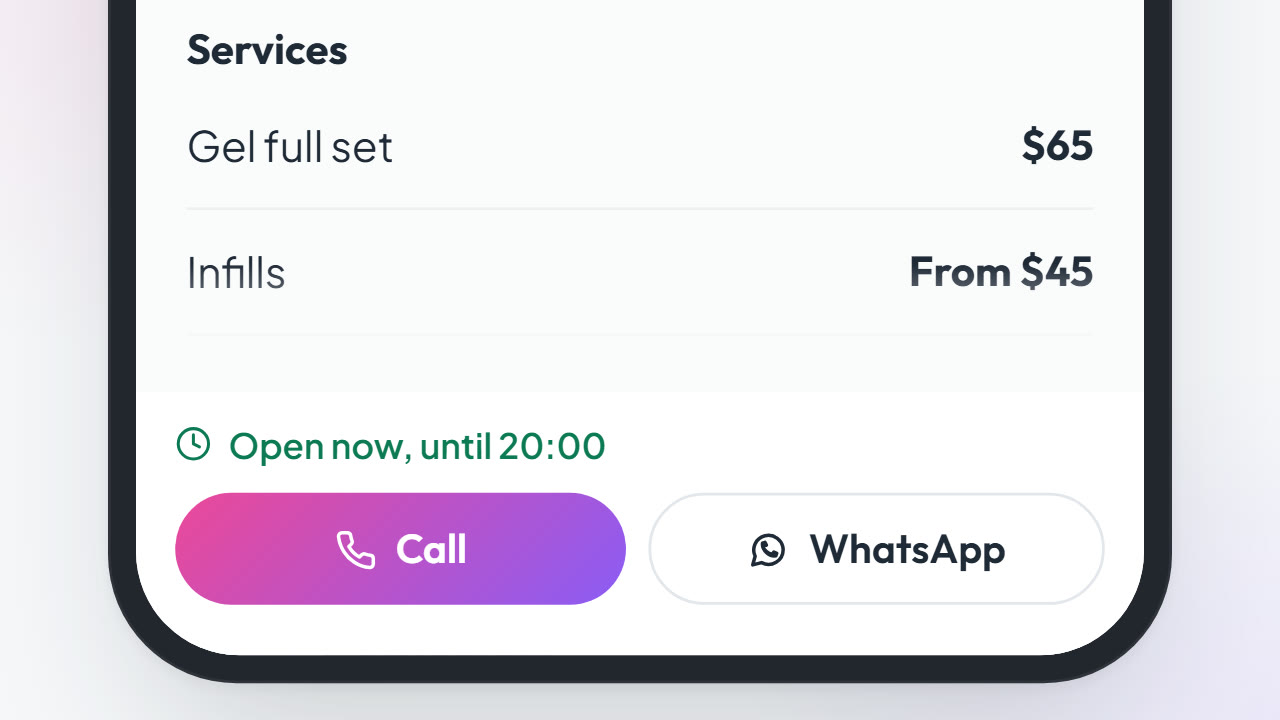
Thursday's closing time changed and saved, then the foot of the site on a phone: the open-now line in its bar reads the new time within seconds.
Thursday's closing time changed and saved, then the foot of the site on a phone: the open-now line in its bar reads the new time within seconds.Nails by Jess, an example business
Thursday changed to 8:00 PM, then Save changes. The bar at the foot of the site now says until 20:00. Simplified drawings of an example business.
8

How people reach you

Do
Check Contact details: email, phone, website, address. Then open Messaging apps and add the ones you answer on, in your order: WhatsApp, Telegram, Messenger, Signal, LINE, Zalo or SMS. The first one becomes the message button on your site and your card. For WhatsApp and SMS you can type a starter message that arrives ready in the chat.
On screen
After saving: "Saved. Live on your website and your card."
Turns into
On a phone, a bar at thumb reach with up to three buttons. By default they are Call, your message app by its name, and Directions, and you can choose others. Call shows only with a number, and while you are closed it steps back unless you switch on Show Call anyway while I'm closed, on your Opening hours page. Directions shows only when your address is on it.
About
About two minutes.
A simplified drawing of the messaging apps screen.
10

Look and feel

Do
Brand and Design is in your menu if you added a logo or cover when you started. If it is not, open Add features and switch it on. Then open it, add a logo and a cover photo if you have them, and pick your colours. If you added a logo, colours are suggested from it.
On screen
There is no Save button here; these choices save themselves.
Good to know
Appearance, under Add features in the side menu, sets how your website is laid out: the page layout, the corners and the spacing. It saves itself too. Your logo, cover and colours are here, in Brand and Design.
Turns into
With no logo, the logo spot shows your first letter on your main colour and the cover is drawn in your colours; until you pick them, they are Helpfol's blue and green. Your link carries a picture for chat apps to show: your cover, or your logo, or your business name set large on a colour if you have neither.
About
About a minute.
A simplified drawing of Brand and Design.
11

The message form (optional)

Do
If you want people to be able to write to you from your site, open Add features, under your features in the side menu, find Contact form and switch it on. Then choose whether each message is emailed to you, or kept in the workspace only.
On screen
Contact form joins your menu. Messages land under Inbox, each marked New, Read or Replied, with a dot in the menu while one is new. Filtered holds what the spam checks set aside, and Archived what you archive. Save as customer keeps the person.
Turns into
A Send a message form on your site. Visitors do not need an account. The spam checks are already on, and there is nothing to set up.
About
Seconds to switch on.
Can wait
Yes. It stays off until you switch it on.
A simplified drawing of Add features, with Opening hours and Brand and Design on, and the Contact form just switched on.
12

Other languages (optional)

Do
If some of your customers read Persian or Chinese, add the language (Settings, in the menu under your name at the foot of the side menu, then Edit Languages). Your hours, prices and number are shared. You write the words in each language yourself.
Turns into
A version at its own address, or English and the other language together on one page. Persian reads right to left. Each version is published on its own. Helpfol never translates your words on its own.
About
As long as the writing takes.
13

Publish

Do
Open the menu at the foot of the side menu, where your name and your business name are, and choose Your ready-made website. On a phone, tap the menu button at the top left first: your name is at the foot of that menu. Your website's address is near the top, with a copy button. Under it is a row for each language. Switch the row from Draft to Published.
On screen
The row reads Published.
Turns into
It is public from that moment. The View your website button at the top of the workspace opens it the way a visitor sees it; on a phone it is the eye button at the top. Once you publish, it also appears in Helpfol's lists by trade and area, next to other businesses, as a link to your site. Nothing there scores you, and no spot is for sale.
About
Seconds.

There is no private preview before you publish yet. If something looks wrong, switch the row back to Draft and it is private again.

A simplified drawing of Your ready-made website, opened from the menu under your name (on a phone, that menu is behind the menu button at the top left).
14

Your contact card

Do
Open Your contact card. It shows the address your card will have: helpfol.com/@ and the name in your website's address, marked From your website. Press Make my card. To use a different address, press Change beside it: a short name you can say out loud, in lowercase letters, digits and hyphens. It tells you straight away if someone has it.
On screen
"Your contact card", marked Live, with Your card address, Change, Copy link, a QR code and Open your card.
Turns into
A card for people who already met you. You come first, with your business under you, then your message app, Add to contacts and Call (while you are open), your number and email to copy, your links and a row to your site. Add to contacts saves a real contact file, with your number and your card's address, that works with no signal. If you change your card address later, the old one keeps working.
About
About a minute.
Simplified drawings of the card, and of the Your contact card screen.
15

Your QR codes, on your phone

Do
Do this on your phone (sign in there if you set up on a laptop): open Your deck, press Open my deck, then Show me how to add it to my home screen and follow the steps for iPhone or Android. On a laptop, Your deck shows a code instead: point your phone's camera at it and the deck opens on your phone. To keep it there, sign in on your phone, open Your deck and follow the steps above.
On screen
"What your deck shows": Your website, Your card, Message me on your app, and your links, each with a switch.
Turns into
An icon on your phone that opens straight onto a big black-on-white QR code. It opens on the last code you showed; swipe for the next one. It works with no signal, and on phones that allow it the screen stays on while a code is showing. If you lose your phone, your deck shows nothing private: only the codes you already hand out.
About
About a minute.
Simplified drawings of your deck on a phone, and of the Your deck screen: on a laptop it shows the code; on a phone, Open my deck.
16

Hand it out

Do
Paste your site's address into your Instagram or TikTok bio. Put it under your name in your emails. Send it in a text when someone asks. When someone asks for your number, hold up your QR code, or open your card and let them tap Add to contacts.
Turns into
Everyone you hand it to opens the same site, showing what you last saved. The contact saved from your card carries your card's address, and your card has a row to your site.
About
Seconds each time.

It does not bring people to you. You hand it out.

.../nails-by-jess/In your bioWhere 'DM for prices' used to be
all here x
helpfol.com/l/...
In a textFrom the couch at 10 pm
On your phoneHold up the QR code
JWJessNails by JessIn their contactsSaved from your card, with its address
helpfol.com/l/...Under your nameIn an email, or at the foot of a quote
.../nails-by-jess/In your bioWhere 'DM for prices' used to be
all here x
helpfol.com/l/...
In a textFrom the couch at 10 pm
On your phoneHold up the QR code
JWJessNails by JessIn their contactsSaved from your card, with its address
helpfol.com/l/...Under your nameIn an email, or at the foot of a quote
17

Change it later

Do
Change your services or your hours any time: open them, press Edit details, change them and press Save changes. Contact details, messaging apps, colours and layout save as you go.
On screen
You are taken back to the page, showing what you saved.
Turns into
Your site has it within seconds, with no second publish, and your card follows. Your QR codes do not change, because they point at your addresses, not at the details.
About
Seconds.
A simplified drawing of the foot of the example site on a phone, once Thursday runs to 20:00.
18

What it cannot do yet

  • Bookings. Your booking link can sit in your links.
  • Showing you visitors or taps.
  • A private preview before you publish.
  • More than one login. Only you sign in, and the card is yours.
  • Your ABN or a licence number on your site. They are kept in your workspace.
  • A printable sign, or a QR code file to print. For now your QR codes are on your phone.
  • An export of your details. Keep your own copy of your price list.
  • Your own website, your own domain name and a business email. Coming, and not priced yet.

If any of that matters to you, it is better to know now than halfway through.

That is all of it. Put your business in.

It asks for what you already know: your business name, what you do and where you work, then as much as you have of your services, prices and how to reach you. Your hours go in afterwards, in your workspace. Nothing goes public until you publish it. You can change every line afterwards, from your phone.

Free. No payment details, no trial.

It is new, and it is built here in Australia. Tell me what is missing and I will read it.